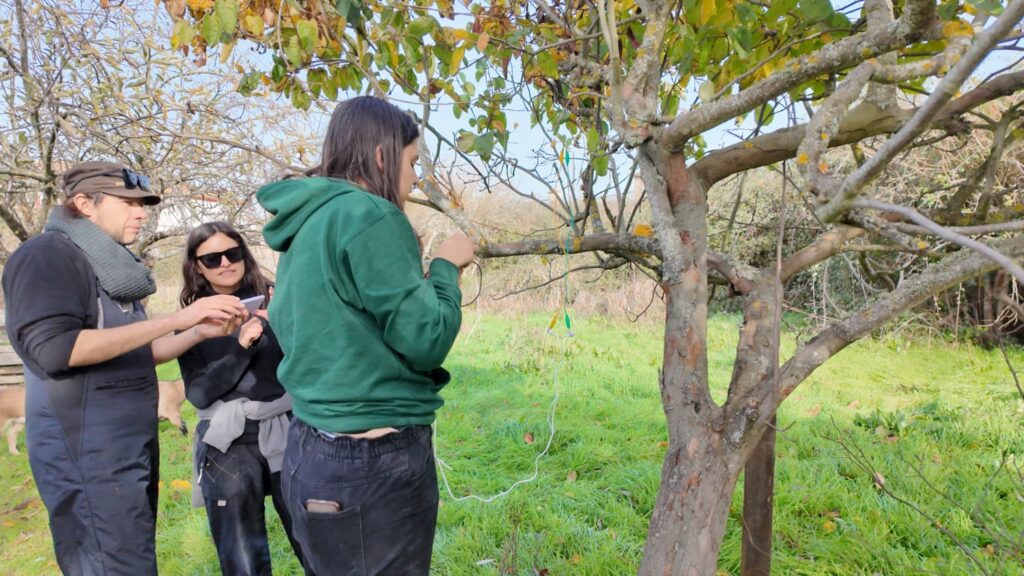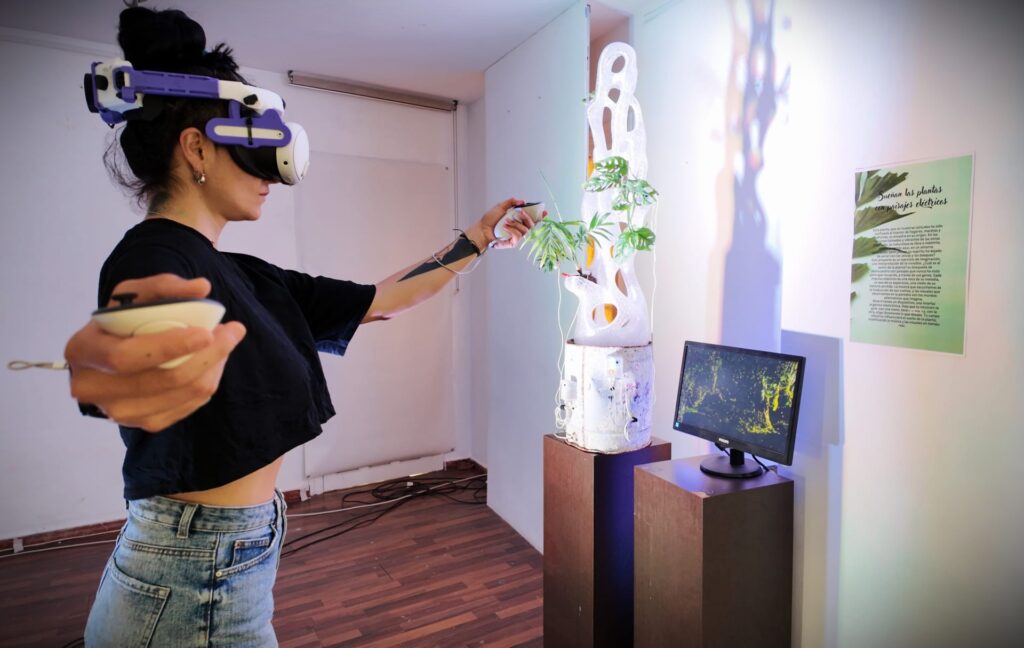

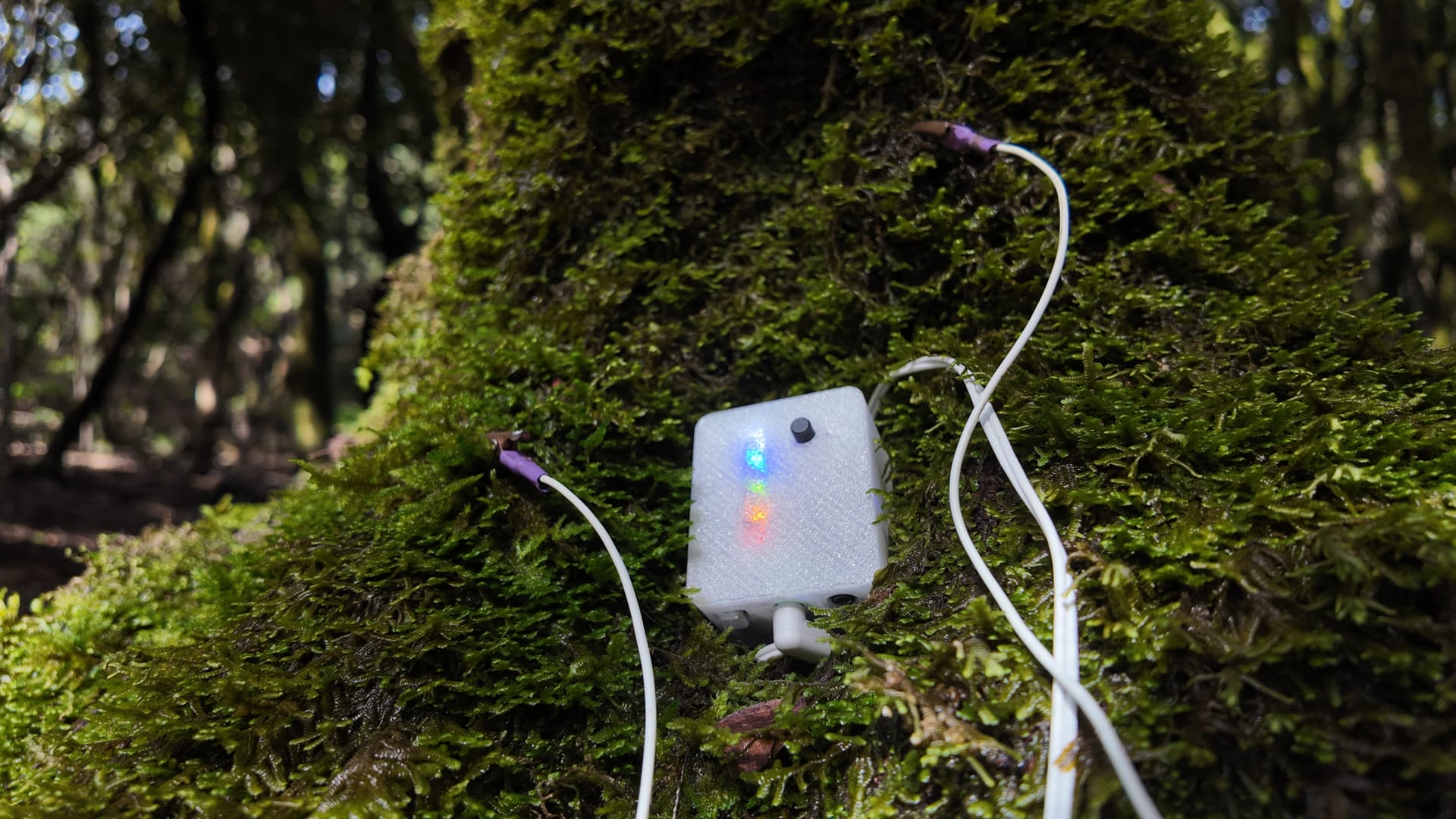
Plants have a quiet electrical life. Biodata listens to those tiny changes and turns them into music. You don’t need to be a technician to enjoy it — just a little curiosity, a leaf, and something that can play MIDI.
This guide walks you through the first connection, the on-device menu, and how to send that plant music to a phone, a computer, or a synthesizer.
What you’ll need
- Your Biodata, charged or plugged in
- Two electrode pads
- A plant with a healthy leaf
- A phone, tablet, computer, or MIDI instrument to hear the notes
Give the pads a moment on the leaf. A good contact is more important than a perfect setup.
First steps
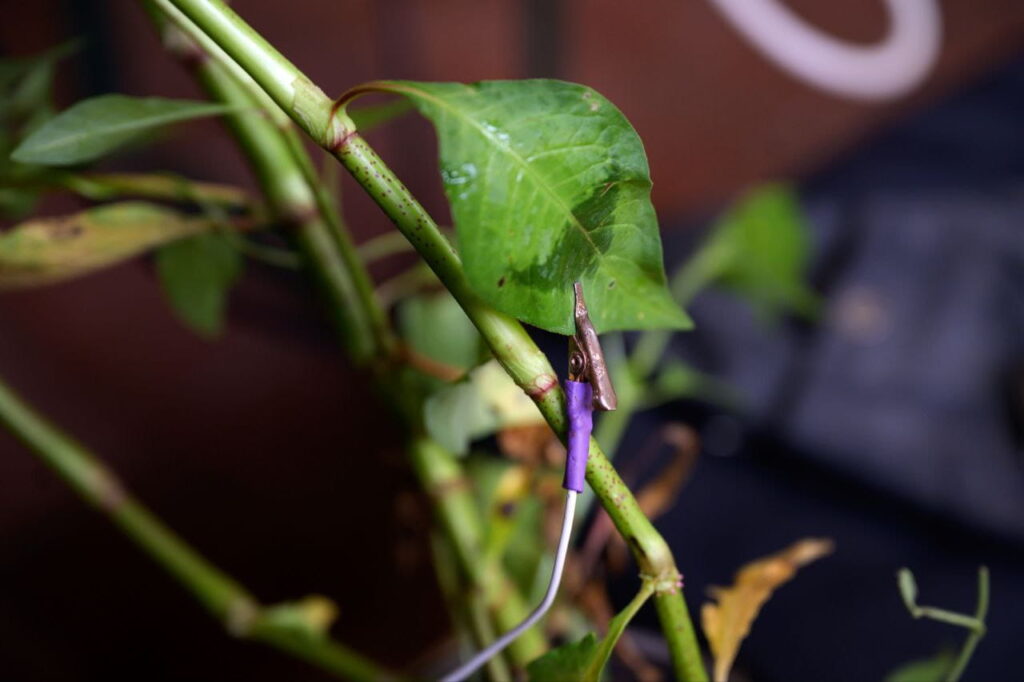
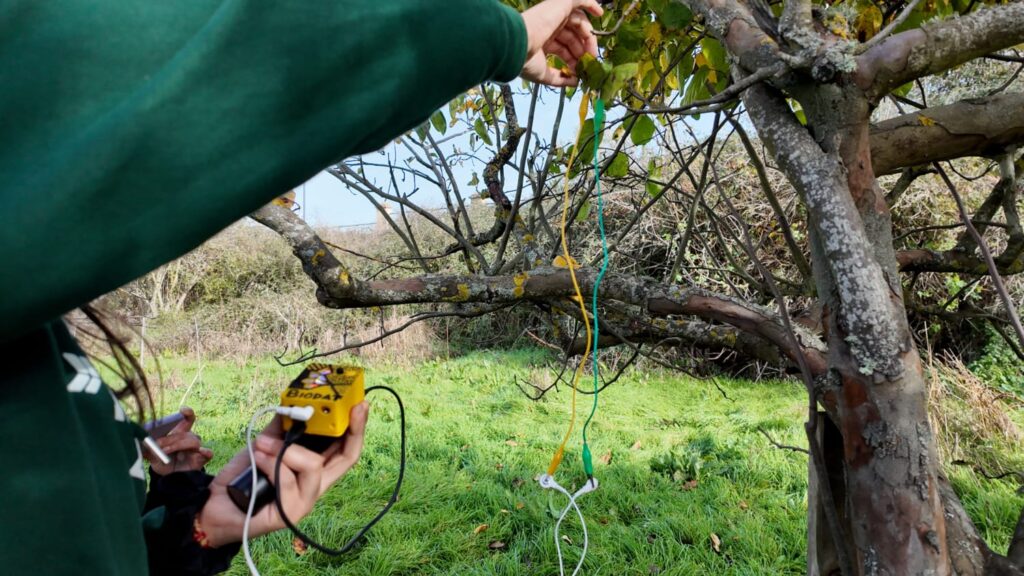
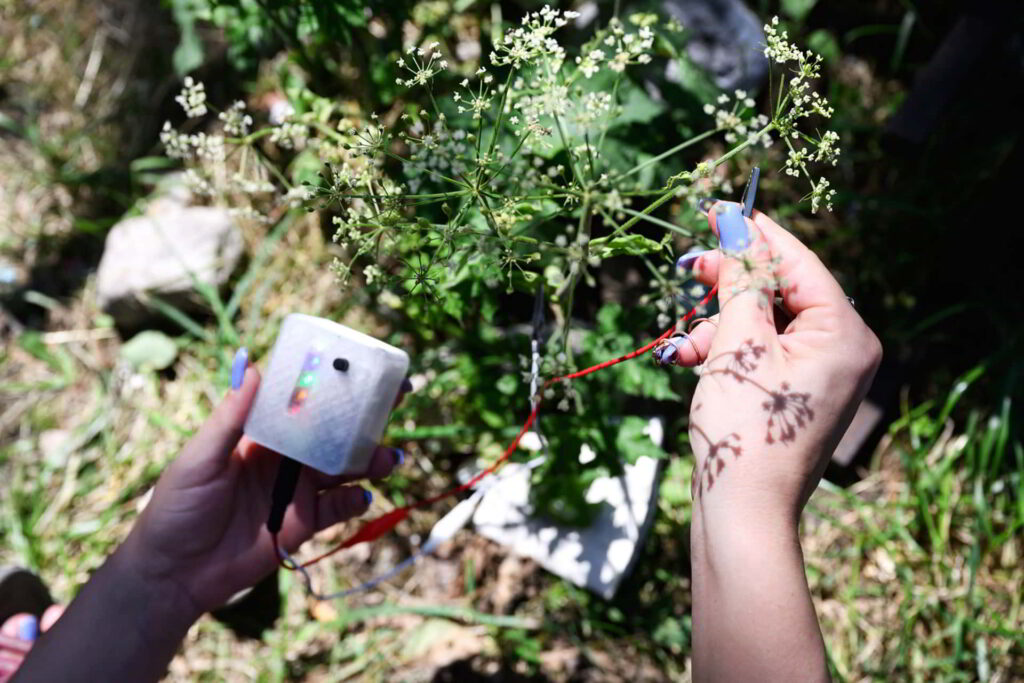
- Stick/plug one electrode on each side of the same leaf, or a short distance apart on a larger leaf.
- Plug the electrode cable into the Biodata (green jack).
- Switch the device on and let the lights do their little welcome dance.
- Connect it to your music app or instrument (Bluetooth, Wi-Fi, USB, or MIDI cable — more on that below).
- Turn the knob slowly until the notes feel right.
The knob is your sensitivity. Turn it one way and the plant will chatter more. Turn it the other way and only the bigger changes come through. There is no “correct” setting — only what sounds good to you in that room, with that plant, at that time of day.
When a note plays, the lights will follow. If everything is quiet, try a slightly more sensitive knob position, check that the pads are making contact, and give the plant a minute. Plants are not in a hurry.
The menu
Everything you can change on the device lives in a small menu. You don’t need a screen: the five lights are your map.
Red · scale
Yellow · MIDI channel
Green · Wi-Fi
Blue · Bluetooth
White · root note (the “home” note of the scale)
How to open it
- Press the button once. You are now choosing a menu.
- Turn the knob. One light will blink — that color is the menu you are about to enter.
- Press the button again to go in.
- Turn the knob to pick a value.
- Press the button one last time to save. The light will flash to confirm, and you are back to listening.
Scale and root note change as you turn the knob, so you can hear the difference before you save. Channel, Wi-Fi, and Bluetooth are stored when you press the button.
If you wander off and don’t press anything, the menu simply closes and the Biodata goes back to playing.
Scale (red)
This is the “flavor” of the notes: minor, major, pentatonic, and a handful of others. Pentatonic minor is a friendly place to start — it tends to sound musical even when the plant is being unpredictable. Chromatic uses every note, which can feel wilder.
Turn the knob, listen, and save the one you like.
MIDI channel (yellow)
Think of this as a lane on a highway. Most apps and synths listen on channel 1, which is the default. If you have more than one Biodata, or your software is already using channel 1, pick another lane so they don’t talk over each other.
Wi-Fi (green)
Turn the knob toward red to switch Wi-Fi off, or toward white to switch it on. The green light stays on so you know which menu you are in.
Wi-Fi is off by default. Turn it on only if your Biodata was set up for a network. When it finds the network, the green light settles; if it can’t connect, red will linger.
Bluetooth (blue)
Same idea: red is off, white is on, and the blue light tells you that you are in the Bluetooth menu. Bluetooth is on by default, which is what most people want for a phone or tablet.
Root note (white)
This is the tonic — C, C#, D, and so on around the octave. Change it if you want the plant to sit in a different key, or to match another instrument in the room. The white light stays on as a reminder that you are choosing the root.
Connecting to other devices
The easiest way to connect the Biodata to a device is via a USB cable; this allows you to connect it to a phone (Android/iOS), a tablet, or a computer. Once connected, the Biodata will send MIDI data through that cable, and you can use any synthesizer to listen to the data from the organisms.
On Android, you can use DRC, one of the best synths I found (Lots of sound design tools and default presets). But you can use any Android-compatible synthesizer—some of the best options are listed here.
On iOS, you have these options.
Biodata speaks MIDI: a simple language that music apps and synthesizers already understand. You can send it wirelessly or with a cable. Pick whichever feels easiest for the moment.
Bluetooth (phones, tablets, and computers)
Bluetooth on the Biodata is BLE MIDI. That is a special kind of Bluetooth made for music. It does not work like pairing headphones.
Do not pair the Biodata from your phone’s Bluetooth settings. Open a music app that supports Bluetooth MIDI and connect from inside that app. The device will show up as BIODATA followed by a number.
Keep the phone reasonably close. One Biodata per device is the sweet spot; two can work, more than that gets messy.
iPhone and iPad
Many music apps can see BLE MIDI directly. A few that people use often:
- GarageBand — open an instrument, go to the settings, and look for Bluetooth MIDI.
- midimittr — a small helper that connects the Biodata and routes it into other apps.
- Synth and MIDI apps such as Animoog, Korg Module, or anything that lists “Bluetooth MIDI” in its MIDI settings.
Typical path: open the app → MIDI or Bluetooth MIDI → tap BIODATA → wait until it says connected → play.
If the app you love does not offer Bluetooth MIDI, install midimittr, connect the Biodata there, and keep midimittr running in the background.
Android
Android can do this well too, as long as you connect from a MIDI-aware app, not from the system Bluetooth list.
- MIDI BLE Connect (from Google) is a simple way to attach the Biodata to Android’s MIDI system.
- From there, any app that accepts MIDI input can hear the plant: synths, DAWs, experimental sound apps.
Open the app → scan for Bluetooth MIDI devices → choose BIODATA.
Windows (important)
Windows is not as friendly with Bluetooth MIDI as a phone is. If the Biodata appears in Bluetooth settings but your music software still cannot see it, that is normal — not a broken device.
Use Perfect Bluetooth MIDI. It is a small, free tool that takes the Bluetooth MIDI stream and presents it to Windows as a regular MIDI port, so Ableton, Reaper, FL Studio, Chrome (Web MIDI), and similar programs can use it like a cable.
- Turn Bluetooth on on the Biodata (blue menu, white = on).
- Open Perfect Bluetooth MIDI and connect to BIODATA.
- In your DAW or browser, choose the MIDI port that Perfect Bluetooth MIDI created.
Leave that app running while you play. USB is still the most straightforward option on a Windows PC if you would rather skip Bluetooth altogether.
Mac
On a Mac you can use Audio MIDI Setup (in Applications → Utilities). Open the MIDI Studio, click the Bluetooth icon, and connect to BIODATA. After that, GarageBand, Ableton, Logic, and most other music software will see it.
Wi-Fi
Wi-Fi sends MIDI over your local network (often called network MIDI or RTP-MIDI). It is handy when you want the Biodata across the room, or several plants sharing the same session.
- Make sure your Biodata was configured for your network.
- Open the green menu and turn Wi-Fi on (white).
- Wait until it joins the network.
- On your computer, open a network MIDI session and connect to the Biodata.
On a Mac, this lives in Audio MIDI Setup → MIDI Studio → Network.
On Windows, a common companion is rtpMIDI.
Some iOS apps also offer Network MIDI.
If the red light stays on after you enable Wi-Fi, the network was not reached. Check that you are on the same Wi-Fi the device expects, or turn Wi-Fi off again and use Bluetooth or a cable.
Cable
Two wired options, both reliable.
USB. Plug the Biodata into your computer with a USB cable. It should appear as a MIDI device almost immediately — no extra drivers on most modern machines. Choose it as a MIDI input in your DAW or browser. This is often the calmest way to work on Windows.
MIDI jack. The small audio-style jack on the Biodata is a MIDI output. With the right adapter cable you can plug it into a hardware synthesizer, a MIDI interface, or anything with a classic 5-pin MIDI input. No computer required: plant in, sound out.
USB is great at a desk. The MIDI jack is great next to a synth. Bluetooth and Wi-Fi are great when you want the plant free of cables.
If something is not working: restore
Settings live in the Biodata’s memory. After a lot of experimenting — or if Bluetooth vanished, Wi-Fi got stuck, or the notes feel “wrong” — a restore usually puts things right.
Hold the button down while you switch the Biodata on.
Let go after the lights have done their startup show. You should see a clear white light, and the factory defaults come back:
- Scale: pentatonic minor
- MIDI channel: 1
- Bluetooth: on
- Wi-Fi: off
- Root note: C
Then connect again from your app, as if it were the first time.
A few other gentle checks before you restore:
- Pads making solid contact? Dry or dusty leaves can go quiet.
- Bluetooth on (blue menu, white)? Connecting from a music app, not from the phone’s Bluetooth list?
- On Windows, is Perfect Bluetooth MIDI running?
- USB cable that actually carries data, not a charge-only cable?
A few friendly tips
- Give it a minute. After you attach the pads, the reading settles. The first notes are often the shyest.
- Battery is nicer for the plant. A wireless connection (Bluetooth or Wi-Fi) plus battery power keeps the sensor a little more “on its own.” USB is still perfectly fine for a session at your desk.
- The knob is your mixer. If the stream of notes feels too busy, turn the sensitivity down. If the room is silent, turn it up a little.
- Time of day matters. Plants have their own rhythm. Morning, afternoon, and night do not sound the same — that is part of the pleasure.
- One plant, one mood. A snake plant, a monstera, and a basil on the windowsill will not play alike. Move the pads, change the scale, and see what happens.
When you are ready, press play — and let the plant take the next note.